
← Back to the MTX-LOOP card · All how-to pages
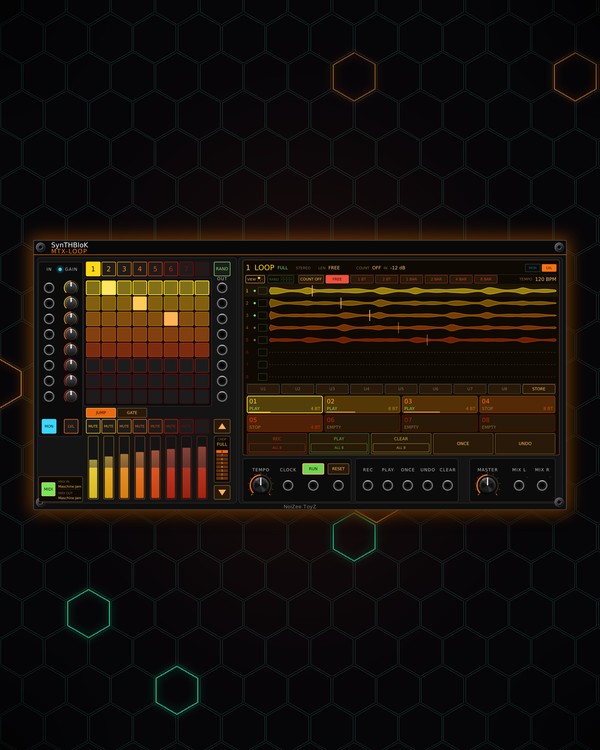
How to use
MTX-LOOP
NoiZee ToyZ pack · coming soon to VCV
What it does
MTX-LOOP is an eight-track loop sampler. Every track is the MTX-ECHO looper: record or replace, play or stop, play once, undo and clear, all locked to one beat grid from a clock or the TEMPO knob. A track records mono, or stereo from a 2-channel (poly) cable, up to 20 seconds each.
The left side is laid out like a Maschine JAM: track buttons, an 8x8 grid where each row is a track's loop cut into eighths, mutes and level strips. The right side is a screen showing all eight loops playing at once, with the record length, scenes, track tiles and the transport. Loops are saved with the patch.
Quick start
- Patch a sound into track 1's IN (top left) and take MIX L / MIX R (bottom right) to your mixer. Each track also has its own OUT beside its row.
- Patch a 16th-note clock into CLOCK, or set TEMPO.
- Pick a record length on the screen (for example 1 BAR), then press REC. The take starts on the beat and closes itself at that length, then plays.
- Press track button 2, patch its input, and record the next loop.
- Click a pad in a track's row to jump that loop to that eighth. Turn CHOP down to repeat a short slice.
Controls
Tracks and transport (the screen)
- 1-8 (over the grid), a track tile, or a lane on the screen: select the track the transport works on.
- REC: record a new take on the selected track (on a loop, a new take replaces it). PLAY: play / stop. ONCE: play it once. UNDO / REDO: the last replace. CLEAR: empty the track.
- ALL 8 (inside REC, PLAY and CLEAR): record on all eight tracks at once, play every stopped loop (all playing: stop them all), or clear all eight.
- Record length: FREE (until you press again), 1 BT, 2 BT, 1 BAR, 2 BAR, 4 BAR, 8 BAR, for the selected track.
- COUNT: OFF (the take starts on the next beat) or 1-4 beats first. Click to step, scroll both ways.
- Track tiles: each track's number, state (EMPTY, REC, PLAY, REPLACE, STOP, ONCE), length, and MON or MUTE.
- VIEW: how the lanes draw the loops: WAVE, SPEC (the loop's spectrum), LIVE (live spectrum) or SCOP (scope). Scroll over the lanes to zoom (WAVE).
Grid
- Pads: row = track, column = an eighth of its loop. The playing eighth is bright; a take being recorded fills red.
- JUMP / GATE (under the grid): JUMP = a pad plays the loop from that eighth (on the next beat when on the grid; press again to call it off). GATE = a pad switches that eighth on or off, right-click accents it.
- CHOP (with ▲ / ▼, right of the strips): every loop repeats this many eighths from where it plays (FULL = the whole loop). Click a segment, scroll, or use the arrows.
- RAND (over the outputs): the loops shuffle as they play, each with its own effect. Right-click: the selected track's effect (1/8, 1/16, 1/32 roll, 1/64 roll, STUTTER, BEAT, BAR or ORDER, which plays the eighths backwards) and amount (LOW, MED, HIGH).
- RAND on the screen: click one of its effect pads to give every lane that effect; with RAND on, click RAND to deal every lane a new one. Each lane's own box steps through the effects (right-click: its menu).
Inputs, levels and mutes
- IN / GAIN (far left): each track's input and its gain, level with its row.
- MON / LVL: MON = the strips set the input gains and you hear the inputs; LVL = the strips set the track levels and you hear the loops.
- MUTE (one under each column): mutes that track. It keeps playing and recording, silent at its output and the mix.
- Strips: click or drag to set the gain or level. The wash shows the input or the track's output.
Scenes
- U1-U8: each scene keeps which tracks were playing when you stored it, and its own RAND effects. Click a scene to select it (it loads its RAND effects; it never starts or stops a track by itself).
- STORE: arm it, then click a scene to store the tracks playing now. Right-click a scene to store or clear it.
- In an MTX Composer, each scene of the song can pick one of these, and its tracks then start and stop to match.
Clock, output and jacks
- TEMPO: the tempo with no clock (40-240 BPM). At the bottom it reads FREE: no grid, the loops run free.
- RUN: stops / starts every loop. RESET: every loop from the top. A trigger at either jack does the same.
- REC, PLAY, ONCE, UNDO, CLEAR jacks: a trigger presses that button for the selected track; on a poly cable, channel 1 = track 1 and so on.
- MASTER: the level at MIX L / MIX R.
Controller and menu
- MIDI (bottom left): on = it listens to the controller. Click MIDI IN / MIDI OUT to pick the ports. Click the module to give it the controller.
- On a Maschine JAM: the pads are the grid (MUTE held: mute that row's track; SOLO held: play / stop it), the scene buttons select the track, A-H mute tracks 1-8, the touch strips are the gains or levels, the knob is MASTER, and PLAY, REC, CLEAR, SONG (undo / redo) and DUPLICATE (once) work the selected track.
- Right-click menu: Controller (Auto, Maschine JAM, or APC mini mk2, Launchpad Mini MK3, Launchpad X, Launchpad Pro MK3 in beta), Clock pulse length (1/16, 1/8 or 1/4), JAM matrix page, Input monitor per track, and Auto monitor-off after recording (on: a closed take stops monitoring its input, so you hear only the loop; REC turns it back on).
Jacks
Inputs
- Track N input N; 2 channels: stereo
- ... trigger mono: the selected track; poly: channel n = track n
- Run trigger: toggles RUN
- Reset trigger: every loop from the top
- Clock
Outputs
- Track N 2 channels when stereo
- Mix left
- Mix right
N = 1, 2, 3 ... (one jack per track, channel or strip). Hover a jack in Rack for the same text.
Tips
- Records loops from MTX-DRUM, MTX-DUO or anything in the rack; MTX Composer fires its loop actions by section.
- Store a scene for each part of the song (just drums, drums and bass, everything) and let MTX Composer bring the tracks in and out.
- Turn on RAND with a low amount on a drum loop for fills that keep changing, then switch it off to land back on the groove.
- Use GATE mode to cut eighths out of a loop and right-click a few for accents, without re-recording.