← Back to the BACKDROP card · All how-to pages
How to use
BACKDROP
NoiZee ToyZ pack · coming soon to VCV
What it does
BACKDROP dresses your whole rack. It draws a background behind every module (a plain colour, more than 100 art looks, a bank of 69 pictures or your own images), a case around the modules, and side panels in wood, metal and more, or rack ears.
Themes set it all in one click, and your own presets save it. It makes no sound and has no jacks: everything is on its screen and in the right-click menu. One BACKDROP dresses the rack; a second one stays quiet.
Quick start
- Add BACKDROP anywhere in your rack. The background and case appear behind all your modules.
- On the screen, click LOOK, then THEME, and click a theme: background, colour, case and depth change together.
- Change any part: BG for an art look, COLOUR, or IMAGE for a picture from the bank or your own (LOAD FILE).
- Click CASE to pick a case, its material, depth and shadow, and SIDES for side panels or rack ears.
- Press COLLAPSE to fold BACKDROP down to 7 HP once it looks right.
Controls
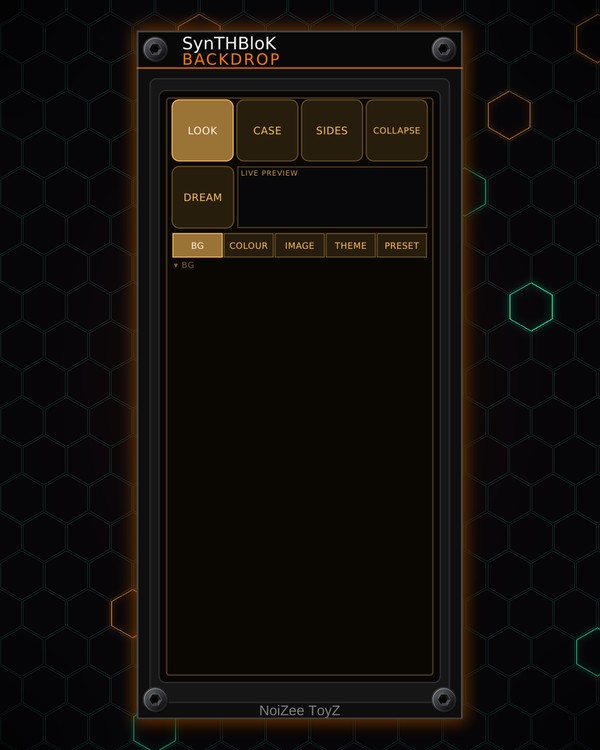
The screen
- LOOK, CASE, SIDES: the three pages. Each has a row of category keys and a grid of choices under them; click a choice to use it. The scroll wheel (or the numbers at the bottom) turns pages of choices.
- LIVE PREVIEW: the top of the screen shows what you have picked.
- COLLAPSE: folds BACKDROP to 7 HP, showing a strip of the background. EXPAND opens it again (it pushes neighbours aside if they are in the way).
- DREAM: adds a DREAM LAB beside BACKDROP, if there isn't one in the patch.
LOOK page
- BG: the art looks (amber grid, OLED glow, nebula, mandalas, fractals and more). OFF removes the look so a loaded picture shows instead.
- COLOUR: the background colour.
- IMAGE: NONE, LOAD FILE, MY FOLDER (opens your images folder), the picture bank, then the images in your folder.
- THEME: ready-made looks. Change anything afterwards and you're on your own version.
- PRESET: SAVE AS... saves everything as a preset, OPEN FOLDER shows where they are, and your saved presets are listed to load.
CASE page
- CASE: the case library: wooden skiffs, anodized and brushed metal, powder coats, road and suitcase cases, carbon fibre, tiered cabinets, NO CASE and more.
- MATERIAL: ITS OWN, or the whole frame in another wood or material.
- DEPTH: FLAT to 150 MM, how deep the case looks.
- SHADOW: SHADOW ON / SHADOW OFF.
SIDES page
- OFF, PANELS, EARS: no sides, side panels screwed to the case ends, or rack ears (an open rack with no case).
- Panels: MATERIAL, SHAPE (SQUARE, SEMI, ROUND), FINISH (OILED, SATIN, GLOSS), and MORE (case on or off, background on or off, the name on the NoiZee plates).
- Ears: FINISH (metals, anodized colours and the NOIZEE TOYZ ears: badge, engraved, backlit, circuit), SHAPE (STRAIGHT or CONTOURED), and MORE (background on or off, the name on the NoiZee ears).
Right-click menu
- Collapse BACKDROP / Expand BACKDROP, and Stick DREAM LAB to BACKDROP (move and collapse as one).
- Image bank, Look, Colour, My images, My presets, Load an image... and Draw the background: the same choices as on the screen.
- With an image loaded: Image placement (tiled, fill, fit or centred), Darken, Snap to fit, Fine-tune sliders (scale, width, height, offsets) and Clear the image.
- Case, Side panels, Rack ears, Case material, Case depth, Drop shadow, Open frame, Info strip and Reset the case options.
- Open the case library folder: add your own cases there in a cases.json file.
Tips
- Drop pictures in your images folder (MY FOLDER) and they show up on the IMAGE page next time.
- Put DREAM LAB on BACKDROP's right side and the two stick together: they move and collapse as one.
- BLANK's three looks (badge, backlit, circuit) match the NoiZee ToyZ ears, so empty gaps match the case.